
I have been doing some more simple scrapbooking by putting my recent holiday pics in an album. I am loving using the Stampin’ Up! mini 6 x 8 album with the pocket pages as it is super quick to get photos in.
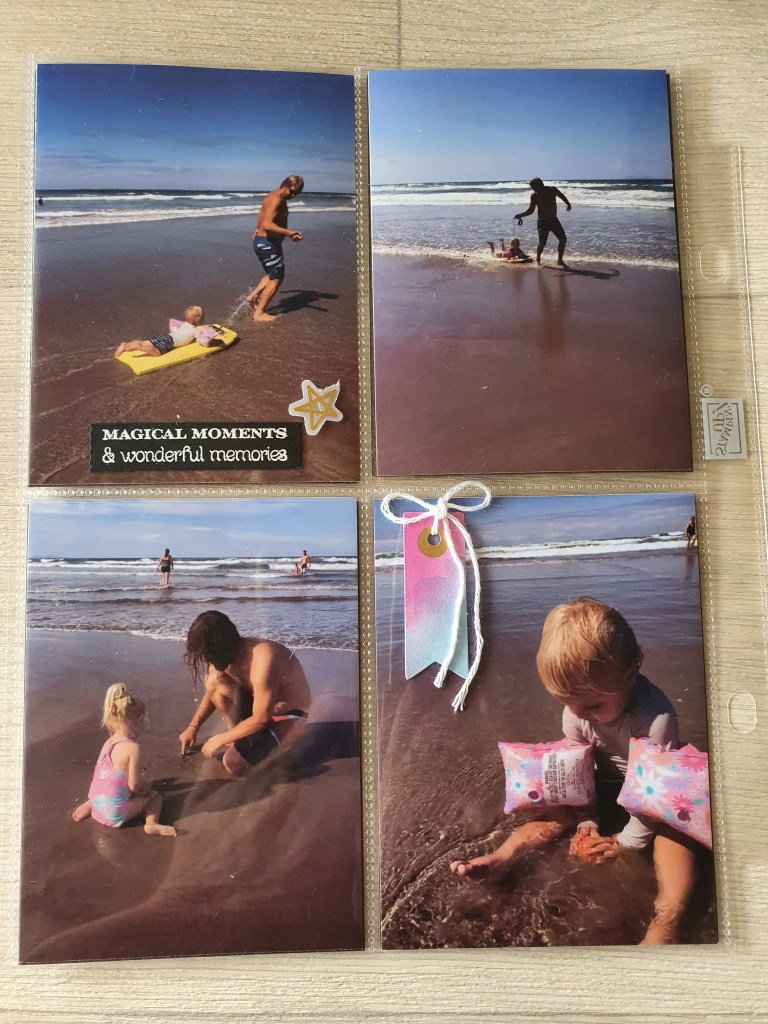
I used the Many Messages bundle to add some wording and new Abstract Beauty Ephemera Pack to add some embellishment.
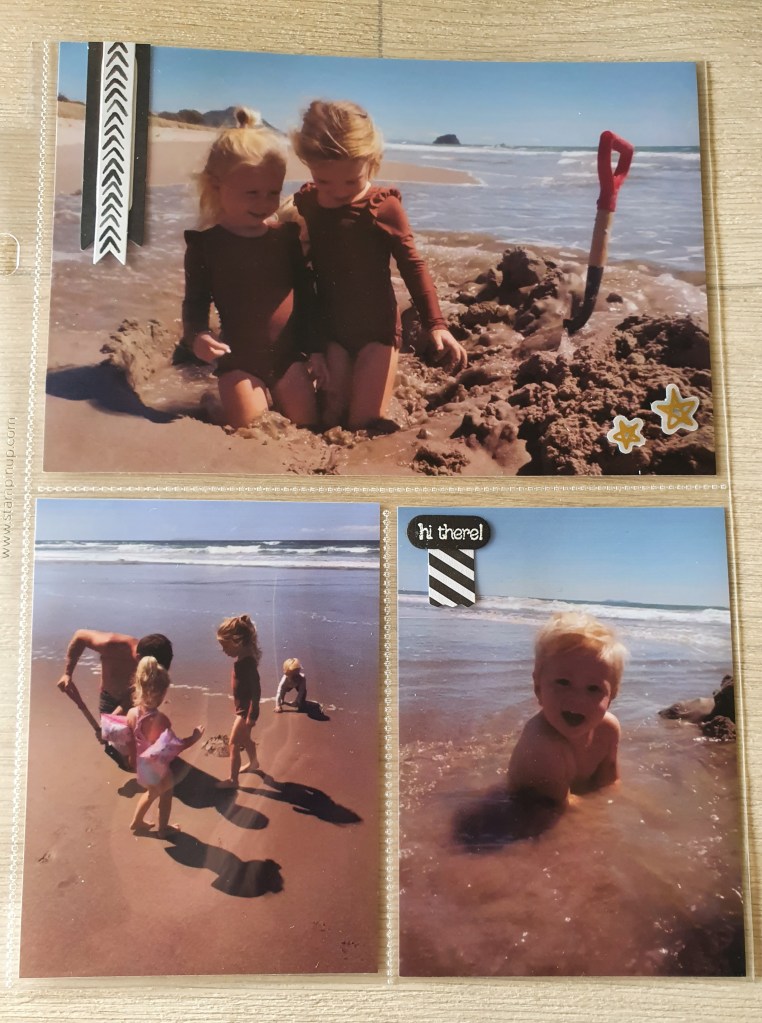
People have asked me how do I scrapbook the large portrait photos when our 6 x 8 albums don’t have pockets for them.
Well, I used to try and cut them down to fit into a small pocket or just put them in the large pocket sideways but neither of those options were ideal. But good news is that I have found a way to print two portrait size photos together on to one landscape 6 x 4 photo.
Here’s how: I use two apps on my Samsung phone. One is printicular which sends my photos straight to my nearest Warehouse Stationery to get printed. The kind staff at Warehouse Stationery loaded the app on my phone for me. The other app is Canva and this is where I edit my photos.
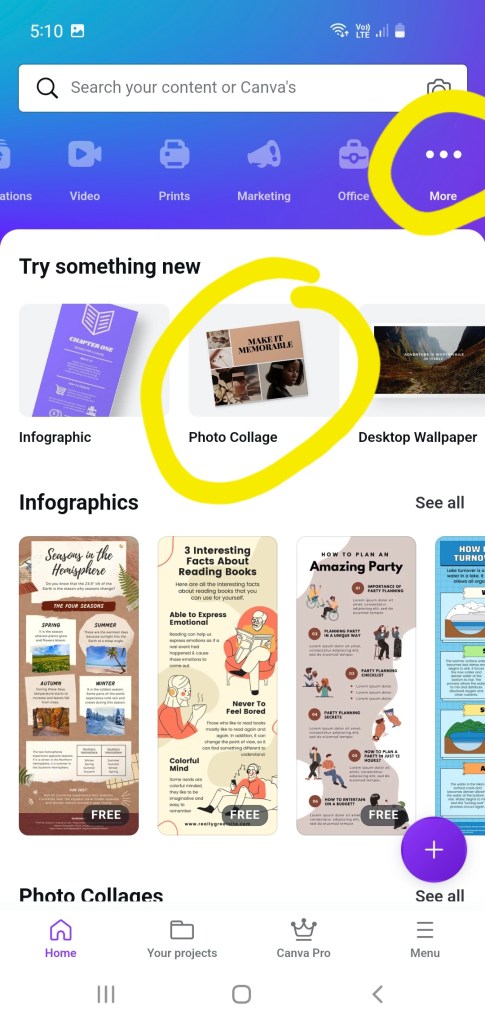
I open canva app. At the top blue banner, I go along until I find the … more button, then select photo collage.
Select a free template that doesn’t have too many elements in it. Click on the photos and words and start deleting them, until you have only two photos left.

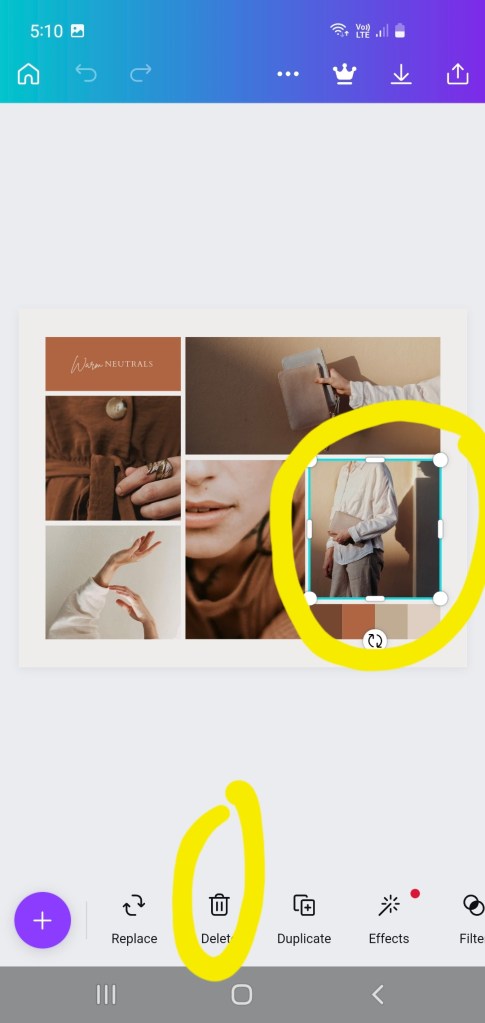

Click on the photos, one photo at a time and use the side bars and corners to move and enlarge both photos until they take up half the template each.
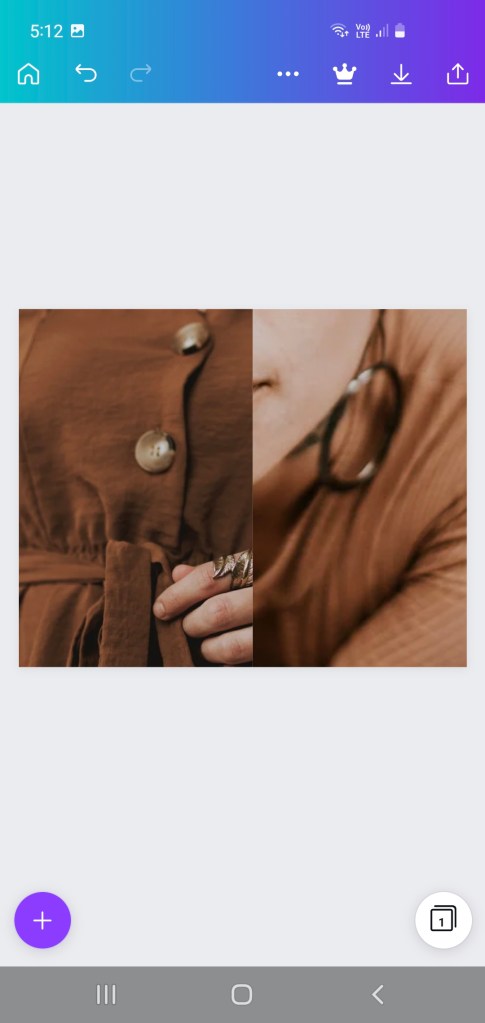
Then click replace, it should bring up photos from your phone’s photo gallery with which you can replace the photos, (one at a time).
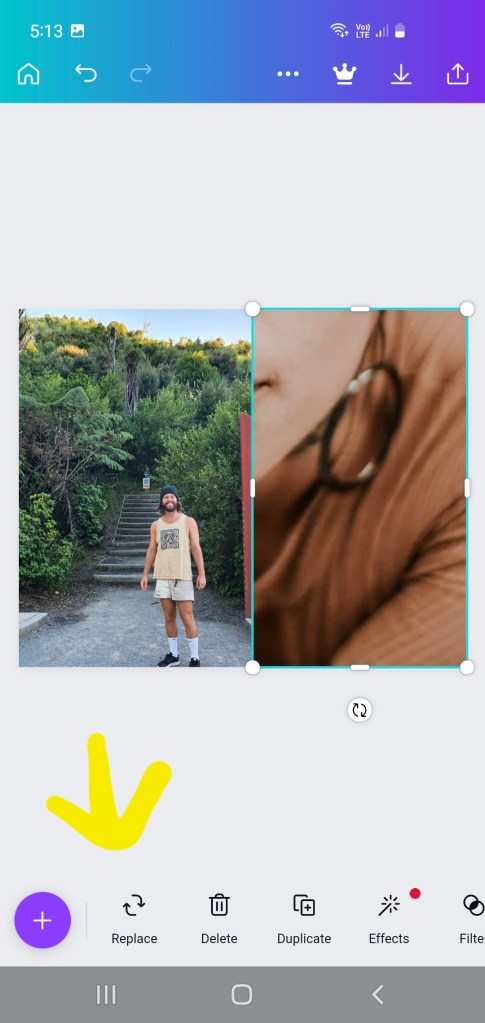
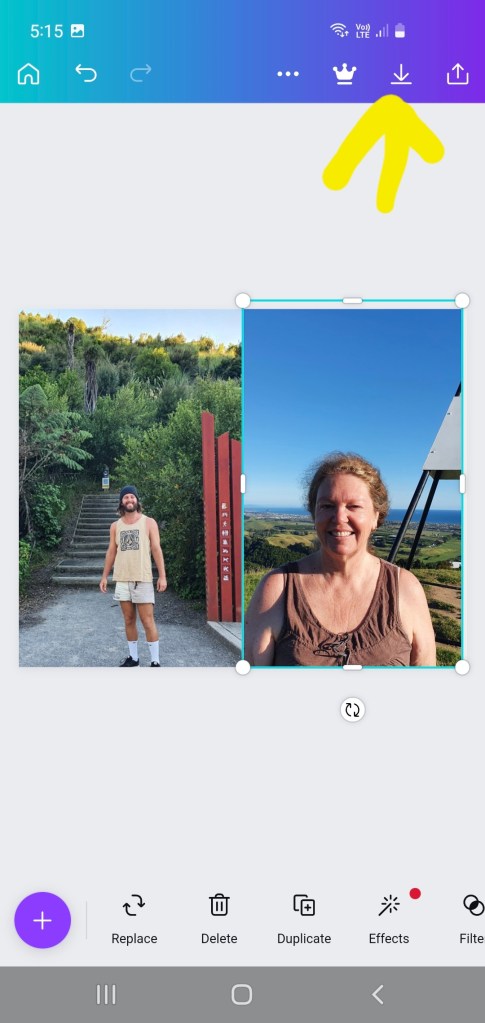
Then click download and save (see photo above).
It will say, preparing your design. Then it will say “saved to gallery”.
You will find it in your photo gallery app under canva category. You can then open your printicular app and select photos to print.
I selected the photo below and once it is printed, I get an email from Warehouse Stationery to go and collect it. I cut it in half to fit in my album pockets and save money as I get two photos for price of one! 😄
Once you have made up this and saved it in Canva, you can next time go directly to your projects and swap out the two photos for two new ones. You won’t need to go through the whole process again.


 Little Paper Star - Rhonda Fawcett